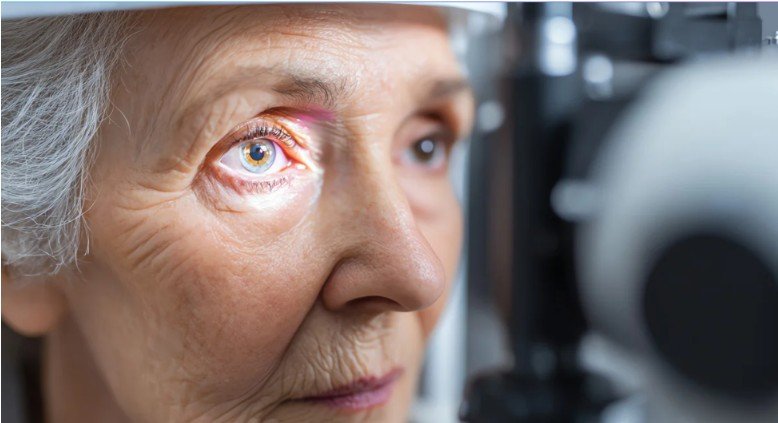

By midafternoon, a normal screen can feel too bright, text may become harder to focus on, and each blink may feel less comfortable. The most useful eye health tips for people who work on computers begin with distance, display settings, blinking, and airflow—not an expensive gadget.
When I review a screen-heavy routine, I fix distance, display, and dryness in that order. Digital eye strain often combines near-focus fatigue with dry-eye symptoms. Research links computer use with reduced or incomplete blinking, tear-film instability, and visual discomfort.
Why Computer Work Makes Eyes Feel Tired
Computer vision syndrome, also called digital eye strain, describes symptoms associated with prolonged computer, tablet, e-reader, and phone use. Common complaints include dryness, sore eyes, headaches, blurred vision, and trouble refocusing. An uncorrected prescription can worsen these symptoms.
Ordinary screen light is not usually the main issue. Sustained near focus, incomplete blinking, glare, small text, dry airflow, and awkward posture matter more. Effective eye health tips for people who work on computers must address habits and workstation design together.
Build Eye Breaks Into Real Work

Use the 20-20-20 Rule as a Trigger
Every 20 minutes, look about 20 feet away for at least 20 seconds. The National Eye Institute recommends this break during prolonged screen use. Look through a window, scan the far side of the room, or stand while your eyes refocus.
Attach the habit to an existing action. Take the break after sending an email, ending a call, saving a file, or changing tasks. This makes eye health tips for people who work on computers easier to maintain during busy days.
A timer can help at first, but constant alerts may become irritating. I prefer linking breaks with natural stopping points because the habit is less likely to interrupt focused work.
Practice Slow, Complete Blinking
Make five slow, complete blinks after each distance break. Close the lids gently, pause, and then reopen them. Complete blinking refreshes the tear film, while incomplete blinking is associated with computer-related discomfort.
Avoid forcing rapid blinking every few seconds. Fast, shallow blinks may not allow the eyelids to close fully. Slow blinking is easier to remember and fits naturally into a short screen break.
Set Up Your Monitor for Comfortable Viewing
Correct the Distance and Angle
Keep the screen far enough away that you can read without leaning forward. OSHA gives a preferred viewing range of about 20 to 40 inches. Increase text size before moving the monitor closer.
Place the top of the monitor at or slightly below eye level. Center the primary screen directly ahead. With two monitors, keep the main one in front and the second beside it to limit repeated neck turning.
Looking slightly downward may also reduce how widely the eyes remain open. This can limit tear evaporation compared with staring upward at a monitor mounted too high.
Reduce Glare and Visual Drag
Place the screen at a right angle to windows when possible. Use blinds, reposition lamps, and clean the display because dust can increase glare. Match brightness to the room rather than using a bright screen in a dark space.
Increase font size and page zoom until reading feels easy. Warmer color settings may feel comfortable at night, but they cannot replace breaks or a correct prescription. These changes turn eye health tips for people who work on computers into practical desk improvements.
Dark mode is not automatically better for everyone. Some people find light text on a dark background harder to read, especially when the text is small. Choose the setting that gives you clear edges, strong readability, and minimal squinting.
Protect Your Tear Film From Dry Office Air

Air-conditioning, heaters, ceiling fans, and desk fans can speed tear evaporation. Redirect vents away from your face. A clean humidifier may help in a very dry room. The National Eye Institute recommends avoiding direct wind, taking screen breaks, and using a humidifier for dry-eye comfort.
Contact-lens wearers may notice dryness earlier because the lens sits within the tear film. Do not compensate by wearing lenses longer than prescribed. Switch to glasses when your eyes become uncomfortable and speak with your eye-care professional if dryness keeps returning.
Hydration Supports Comfort, but It Is Not a Cure
Drink enough water throughout the day, but can dehydration affect eyesight and eye health? The National Eye Institute includes adequate water intake among dry-eye self-care measures. However, hydration cannot correct an outdated prescription, poor contact-lens fit, incomplete blinking, or excessive lens wear.
Over-the-counter artificial tears may help mild dryness. Ask an eye-care professional which formula suits you, especially if you wear contacts or use drops often. Persistent dry eye deserves an examination. Evidence-based eye health tips for people who work on computers prioritize the environment and vision correction before accessories.
Which Screen-Eye Products Actually Help?

Marketing often outruns evidence. Anti-fatigue glasses such as Clearo may reduce reflections when they include an accurate prescription and anti-reflective coating. However, blue-light filtering alone has not shown a meaningful short-term benefit for computer eye strain in a Cochrane review.
Blue-light glasses may still feel comfortable to some users, but they should not be marketed as proven protection against screen-related eye damage. Prescription accuracy, anti-reflective coatings, screen distance, glare control, and breaks deserve greater attention.
A doctor-written resource such as Digital Eye Strain: A Doctor’s Guide may help build better habits, but it cannot diagnose dry eye or an incorrect prescription.
Eye Cap 700 mg should not be presented as a proven way to prevent digital fatigue. Supplements may be appropriate for diagnosed nutritional needs, but routine screen discomfort is better addressed through blinking, breaks, ergonomics, and professional care.
A matte screen protector may reduce reflections on a glossy display. A monitor light bar can balance desk lighting when aimed correctly, but it may create glare when positioned poorly. The light should illuminate the desk rather than shine directly into your eyes or reflect across the monitor.
My 90-Second Distance, Display, and Dryness Audit
This original check combines the best eye health tips for people who work on computers into one quick reset.
First, check distance. Sit upright and confirm that you can read without leaning forward. Increase page zoom when your shoulders begin moving toward the screen.
Next, check the display. Open a white page. If it looks like a lamp in the room, lower the brightness. Remove visible reflections and enlarge small text.
Finally, check dryness. Notice whether a fan, heater, or air-conditioning vent reaches your face. Redirect it, make five complete blinks, and schedule your next distance break.
An eight-hour computer user might choose 125% zoom, keep the monitor about 24 inches away, place its top edge slightly below eye level, and attach breaks to file saves. This routine protects comfort without disrupting focused work.
When Screen Symptoms Need an Eye Exam
Arrange an eye exam when symptoms continue despite better habits, when you struggle to refocus after work, or when your glasses seem wrong for computer distance. At that point, eye health tips for people who work on computers should include professional assessment. Exams can identify refractive errors, dry eye, and conditions that desk changes cannot correct.
Seek urgent medical care for sudden vision loss, intense eye pain, or a sudden increase in flashes and floaters accompanied by a curtain-like shadow. Those symptoms are not typical digital eye strain.
Your Eyes Need a Better Workday, Not More Hype
I would start tomorrow with three changes: enlarge the text, move direct airflow away, and connect the 20-20-20 rule to an existing task. These steps cost nothing and target common causes of discomfort.
The smartest eye health tips for people who work on computers are repeatable, not dramatic. Build a desk that lets you sit upright, blink fully, and look far away often. Then consult an eye-care professional if discomfort keeps returning.
Frequently Asked Questions
1. What Are the Best Eye Health Tips for People Who Work on Computers All Day?
Use distance breaks, complete blinking, comfortable text size, reduced glare, proper monitor distance, and less direct airflow.
2. How Often Should Computer Users Rest Their Eyes?
Follow the 20-20-20 rule: every 20 minutes, look about 20 feet away for at least 20 seconds.
3. Do Blue-Light Glasses Prevent Computer Eye Strain?
Current evidence suggests blue-light filtering lenses provide little or no short-term improvement over regular lenses.
4. When Should Digital Eye Strain Be Checked by a Doctor?
Book an exam when symptoms persist, worsen, affect work, or include pain, redness, double vision, or sudden visual changes.